What Is Apple Pay? How to Link and Pay with a SeABank Card
09/10/2026
What is Apple Pay, how does it work, and is it secure? Learn about NFC technology, how to link a SeABank card to Apple Pay, and important notes when using it in Vietnam.
What is Apple Pay, and why are more iPhone and Apple Watch users choosing it instead of a traditional wallet? It is Apple's contactless payment method, allowing users to hold their device near a POS terminal or confirm payments in an app without taking out their physical card, thanks to NFC technology and tokenization. This article explains how Apple Pay works, how to link a SeABank card, and important notes when making payments in Vietnam.
Note: The figures and information in this article are compiled from general market sources and do not apply exclusively to SeABank's products.
1. What Is Apple Pay?
Apple Pay is a mobile payment service developed by Apple that allows users to make payments directly using Apple devices (such as an iPhone, Apple Watch, iPad, or Mac) without using a physical bank card or cash.
Important note: Apple Pay is not an e-wallet. You do not need to top up or maintain a balance in Apple Pay. The service essentially works as a "digital bridge" that digitizes your existing credit or debit card in the Apple Wallet app on your device, allowing you to make payments using funds from your bank account.
1.1. How It Works
Advanced NFC technology: Apple Pay uses NFC (Near Field Communication) technology - a very short-range wireless connection between an Apple device and a POS terminal. When you hold your iPhone or Apple Watch near a reader displaying the contactless payment symbol, payment data is transmitted almost instantly without swiping a card, using cash, or even requiring an Internet connection on the device at the time of payment.
Enhanced security: Instead of directly transmitting your actual card number, the system uses a unique identifier for the device (Device Account Number) combined with a transaction-specific code that changes with each payment. This helps significantly reduce the risk of card information theft or data exposure during transmission.
1.2. Key Benefits
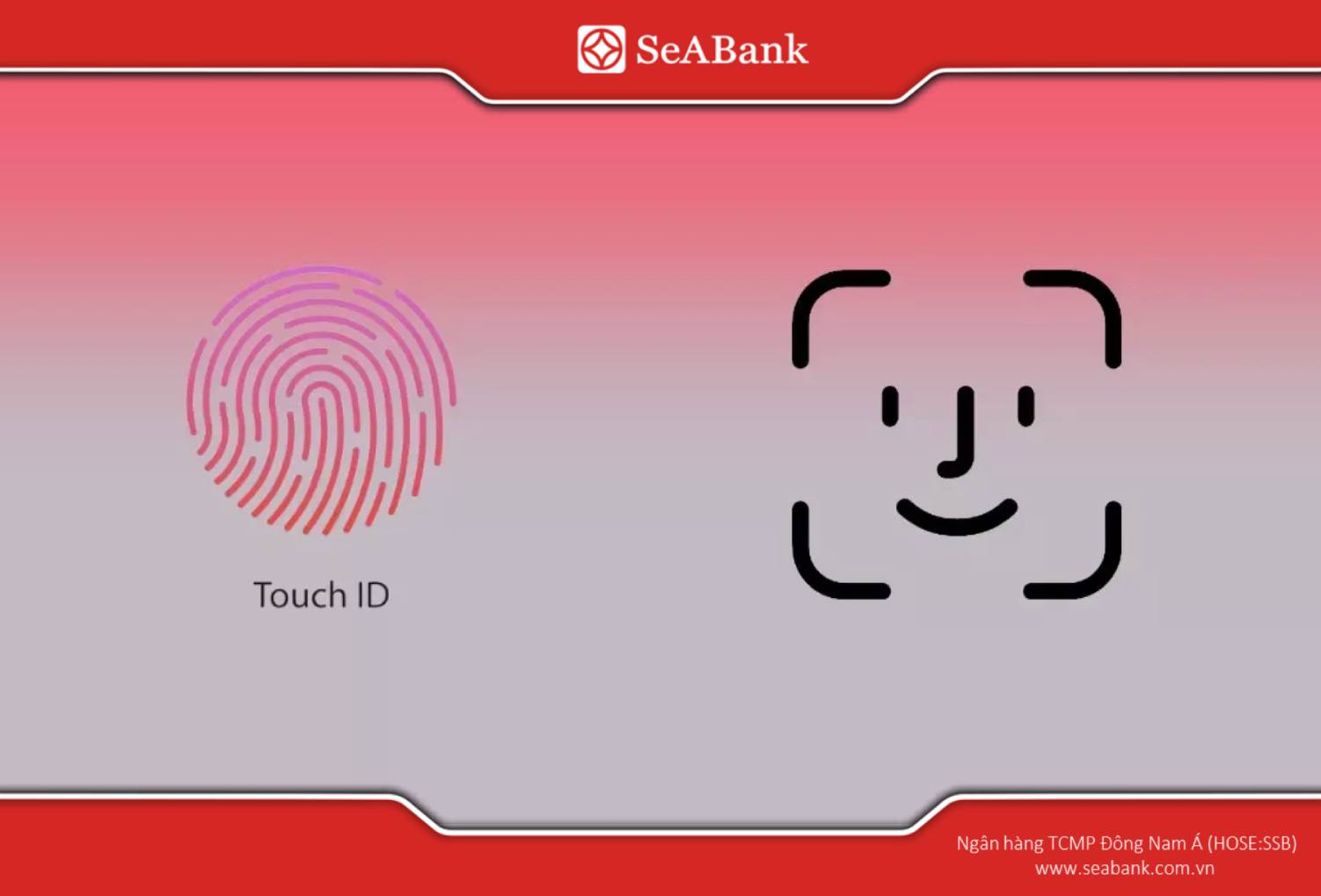
Enhanced security and safety: Transactions require biometric authentication (such as Face ID, Touch ID) or the device PIN, significantly reducing the risk of fraud if the physical card is lost.
Fast and convenient: Users can avoid carrying a bulky wallet. Payments can be completed within seconds at locations that accept contactless payments.
Flexible and available across multiple devices: Apple Pay can be used on different Apple devices (iPhone, Apple Watch, iPad, Mac) for purchases at physical stores or online payments on websites/apps.
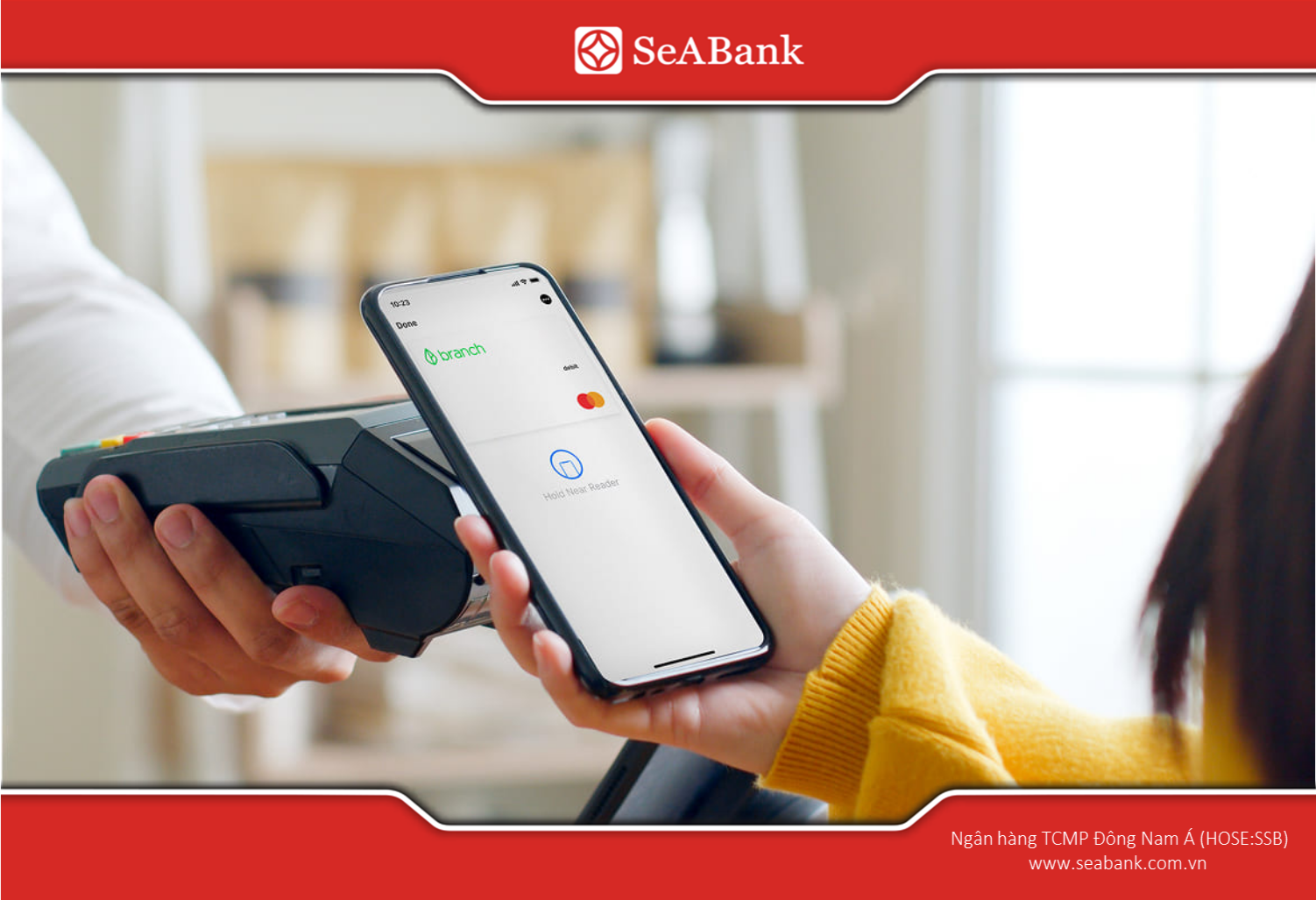
What is Apple Pay? Apple Pay uses NFC technology and tokenization for secure one-touch payments
2. Differences Between Apple Pay and Regular Physical Card Payments
Although both are used for payments, Apple Pay and physical cards have several notable differences in how transactions are made, security, and user experience:
Criteria
Payment with Apple Pay
Payment with a Physical Card
How it works
Hold an iPhone/Apple Watch near a POS terminal or select Apple Pay when shopping online
Swipe, insert the chip, or tap the card on a POS terminal
Information transmitted
A token is used instead of the actual card number
Card number, expiration date, and CVV printed on the card
Transaction authentication
Face ID, Touch ID, or device passcode
Signature, PIN, or no authentication for low-value transactions
Risk if the device/card is exposed
Difficult for others to use without biometric authentication
Someone who finds the card may be able to use it directly
Device requirements
Requires a compatible iPhone, Apple Watch, iPad, or Mac
Only requires a valid physical card
What you need to carry
No need to carry the card, only an Apple device
The physical card must be carried
3. How to Link a SeABank Card and Use Apple Pay on iPhone and Apple Watch
To link a SeABank card to Apple Pay, you need to be the holder of a valid SeABank international Visa debit or credit card, have a phone number/email registered with the bank to receive OTPs, and use an Apple device that supports Apple Pay. There are three ways to add your card, so you can choose the method that best suits your usage habits.
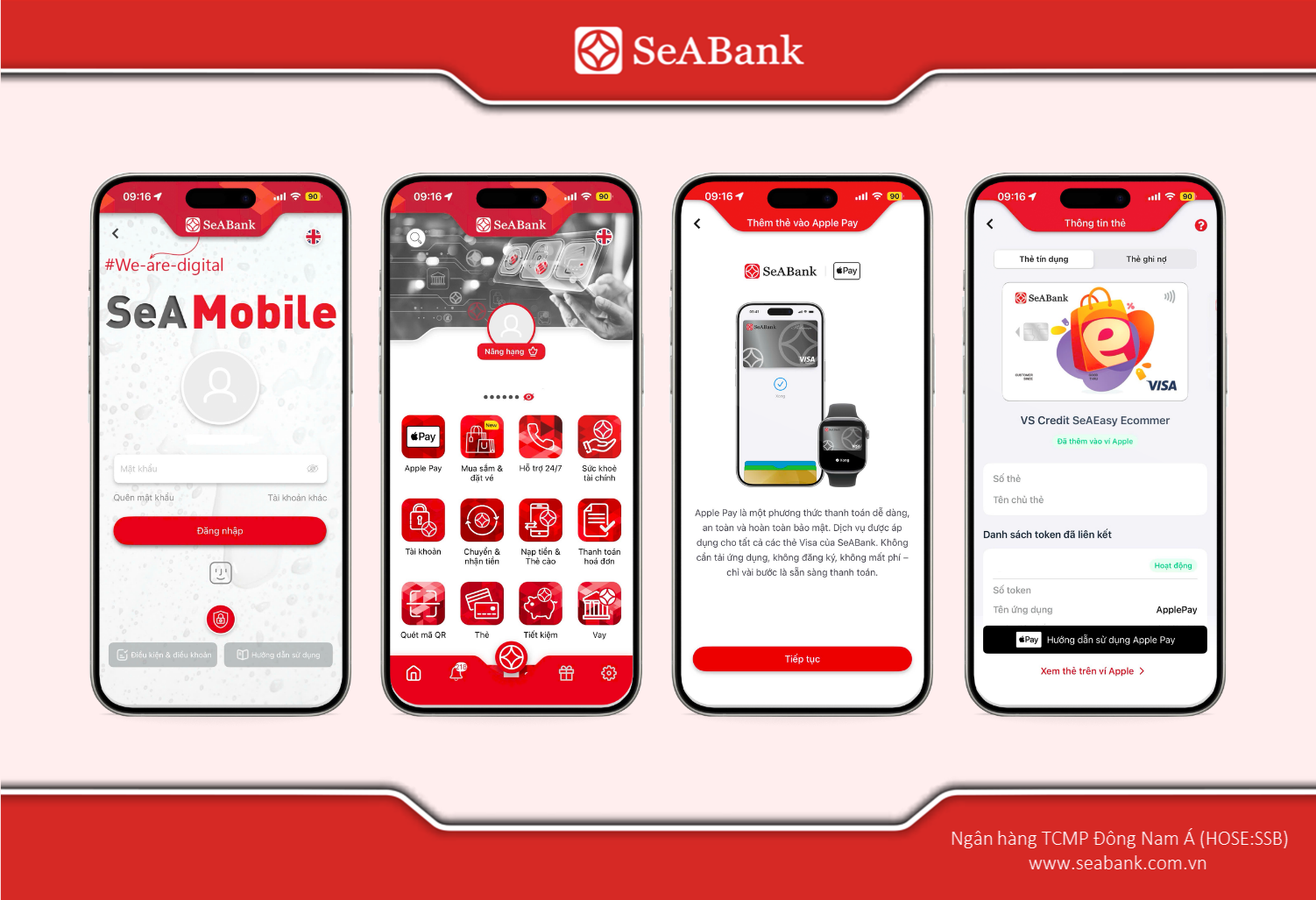
3.1 Link via the SeAMobile App
Step 1: Log in to the SeAMobile app.
Step 2: Select the Apple Pay icon.
Step 3: Select the card you want to link, tap "Add to Apple Pay Wallet," and follow the instructions to complete the process.
Steps to link Apple Pay directly through SeAMobile
3.2 Link via Apple Pay Wallet (Apple Wallet)
Step 1: Open Apple Pay Wallet on your iPhone.
Step 2: Tap the "+" button and select SeAMobile under "From Apps on Your iPhone."
Step 3: Log in to the SeAMobile app.
Step 4: Select the card you want to link and follow the instructions to complete the process.
3.3 Link Manually
Step 1: Open Apple Pay Wallet on your iPhone.
Step 2: Tap the "+" button and select "Debit or Credit Card."
Step 3: Enter the required card information and follow the steps to complete the process.
After linking the card on your iPhone, you can similarly add it to your Apple Watch through the Watch app on your iPhone. Once paired, the watch can be used independently for payments, making it convenient when you go out for exercise or do not have your phone with you.
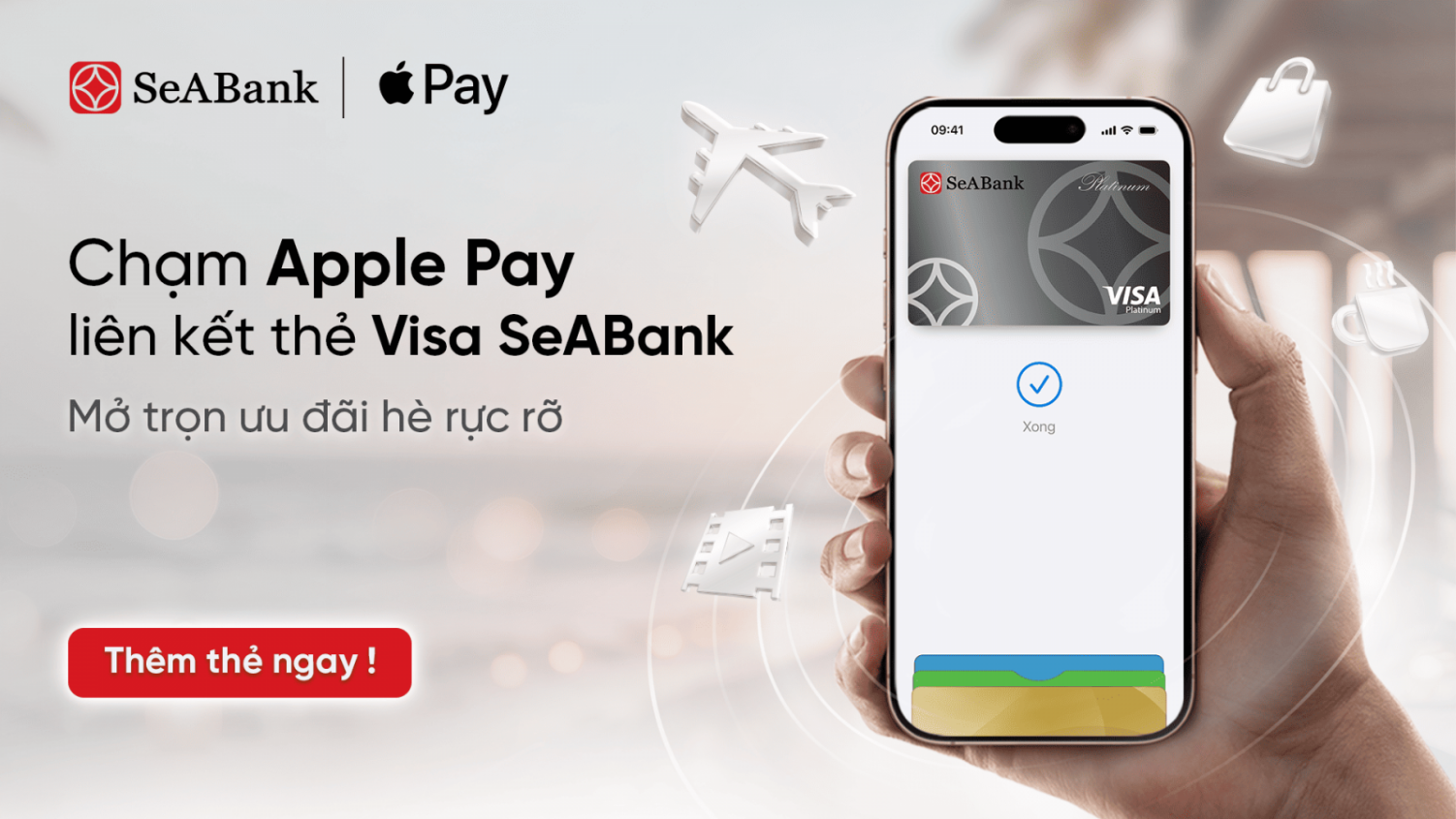
Link your SeABank card to Apple Pay Wallet on iPhone to enjoy a variety of benefits
4. How to Use Apple Pay for In-Store Payments
Once your card has been successfully linked, paying with Apple Pay at stores with contactless POS terminals is simple:
For iPhone (using Face ID): Double-click the Side Button → Look at your phone to authenticate with Face ID (or enter your device passcode) → Hold the top of your iPhone near the screen or contactless symbol on the POS terminal until a Done checkmark appears and you feel a slight vibration.
For iPhone (using Touch ID): Place your finger on the Home button without unlocking the screen → Hold your phone near the POS terminal.
For Apple Watch: Double-click the Side Button on the watch → Hold the Apple Watch display near the POS terminal until you hear a beep or feel a slight vibration confirming that the transaction is successful.
5. Important Notes When Paying with Apple Pay
When using Apple Pay for everyday payments, you should keep the following points in mind to ensure transactions are smooth, secure, and accurate:
The device must have power/a working battery: Although Apple Pay on iPhone or Apple Watch does not require an Internet connection at the time of contactless payment, your device must have sufficient battery power and be turned on. (Apple Watch can make payments even when your iPhone is at home, as long as the watch still has battery power).
Check for the contactless payment symbol (Contactless): Before holding your device near the POS terminal, check whether it displays the contactless wave symbol (similar to a sideways Wi-Fi signal) or the Apple Pay logo.
Not an e-wallet, no top-up required: Remember that Apple Pay is simply a tool for digitizing your physical bank card. You do not need to add money to Apple Pay, as payments are deducted directly from your credit card limit or the account balance linked to your debit card.
Keep your device passcode (Passcode) confidential: Since transactions are protected by the device PIN and biometric authentication, never share your iPhone/Apple Watch unlock passcode with anyone to prevent unauthorized payments.
Manage your device if it is lost: If your phone or watch is lost, you can use Find My to lock or remotely erase the device, helping keep your bank card information protected.
Face ID/Touch ID authentication and tokenization help secure Apple Pay transactions
Apple Pay is completely free to use. Users do not have to pay any fees when adding a card to the e-wallet or making payment transactions through the service. However, fees directly related to the bank card (such as annual fees, foreign currency transaction fees...) will still apply according to the current fee schedule of each issuing bank.
For SeABank, the bank does not charge customers any fees for adding cards to or making payments through Apple Pay.
2. Which SeABank cards can be linked to Apple Pay?
Currently, Apple Pay supports valid and active SeABank international Visa debit and credit cards.
3. Will my card information be exposed if I lose my phone?
Because Apple Pay uses encryption and requires biometric authentication for each transaction, it is difficult for another person to use your device for payments without passing the authentication step.
However, if you lose your phone, you should act quickly by taking the following steps:
Enable Lost Mode: Use Find My on another device to immediately lock Apple Wallet.
Contact the bank: Call the hotline to request a temporary lock on the linked card.
4. Can I use Apple Watch to make payments without carrying my iPhone?
Yes. After linking your card to Apple Watch, you can make payments independently using the watch without carrying your iPhone with you.
5. Can Apple Pay be used abroad?
Yes, as long as the payment location accepts Apple Pay. The transaction will be converted into the applicable currency according to the exchange rate and current fee schedule of the card-issuing bank.
In general, what is Apple Pay is no longer a difficult question for Apple users: it is a one-touch payment method that combines NFC and tokenization to make transactions faster and more secure than using a physical card. Linking a SeABank card to Apple Pay takes only a few steps through SeAMobile or Apple Wallet. Add your SeABank international card to Apple Pay today to experience modern, secure, and convenient one-touch payments!
Southeast Asia Commercial Joint Stock Bank (SeABank)