Effective Guide to Scanning Chip-Based Citizen Identity Cards (CCCD) on Phones and Computers
14/10/2026
Detailed instructions on how to scan the CCCD chip on phones and computers, enabling fast, accurate, and secure information lookup
In the era of digitalization, the Chip-Based Citizen Identity Card (CCCD) has become a vital tool, enabling citizens to conduct administrative transactions quickly and securely. A thorough understanding of the CCCD chip and the scanning process is necessary to maximize the benefits of this card.
Note: The figures and content in the article are compiled from general market sources and do not apply specifically to SeABank products.
1. Overview of CCCD chip
The chip-embedded CCCD is a new citizen identification card with an integrated smart electronic chip that stores citizens' personal information. Information on the chip includes:
Full name, date of birth, gender
CCCD number and personal identification code
Portrait, digital signature
Other information for administrative management
CCCD chip scanning is required in many administrative and financial procedures.
Unlike the old CCCD type, electronic chips have many outstanding advantages:
High information security: The CCCD chip uses modern encryption technology, allowing personal information to only be accessed by authorized agencies or when the user actively scans the card through a valid device.
Quick information verification: With electronic chips, checking personal information becomes easy and accurate. Just scan the CCCD chip with your phone or card reader, the information will appear in seconds.
Easy administrative transactions: Online public services such as health declaration, driver's license application, or administrative record lookup can all be quickly authenticated thanks to the CCCD chip, helping to reduce waiting time and paperwork.
Scanning the CCCD chip is generally required in the following scenarios:
Verify personal information when doing administrative, banking and insurance procedures.
Log in to online public applications such as VNeID or public service portal.
Check the validity of the card to avoid using fake CCCD.
Look up information about health, education, or other public services that require identity verification.
According to Circular 17/2024/TT-NHNN and Circular 18/2024/TT-NHNNFrom January 1, 2025, customers must perform biometric authentication to conduct banking transactions. Therefore, facial recognition scanning and chip-embedded ID card scanning are required when customers want to use Mobile Banking services, including SeAMobile.
2. How to scan CCCD chip on phone
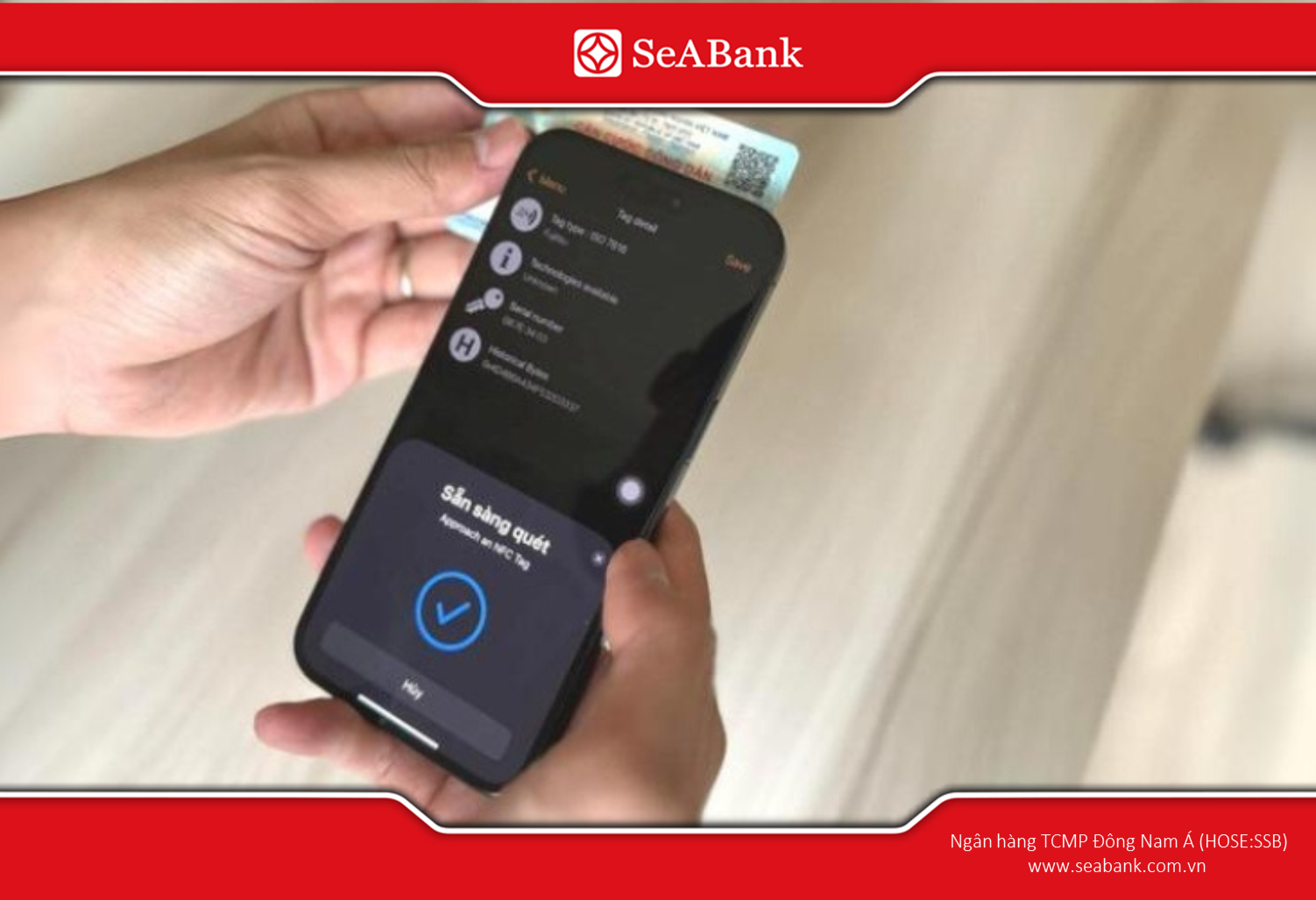
To look up personal information quickly and accurately, you can use a phone with NFC to scan the CCCD chip. Below are detailed step-by-step instructions, making scanning the chip simple and effective.
Prepare:
NFC-Enabled Phone: Your mobile device must support Near-Field Communication (NFC). Most modern Android phones and iPhones have this feature.
Installation of a CCCD Scanning Application: Install a supporting application, such as one provided by the police authority, a Mobile Banking application, VNeID, or other official software. This application reads the data on the CCCD chip and accurately displays personal information.
How to do:
Step 1 – Enable NFC on the phone: Access the settings and enable the NFC feature so that the phone can recognize the CCCD chip (this usually applies to Android devices, as Apple devices do not require manual NFC activation).
Step 2 – Open the CCCD Scanning Application: Launch the pre-installed application to prepare for scanning.
Step 3 – Place the CCCD chip near the NFC Detection Area: Position the card close to the phone's detection area and hold it steady so the device can recognize the chip.
Step 4 – Wait for the Application to Display Information: Personal information will be read by the application and displayed on the screen within a few seconds.
Step 5 – Review and Save Information (If needed): Carefully check the displayed information and save it if desired, for use in administrative procedures or future lookups.
Note:
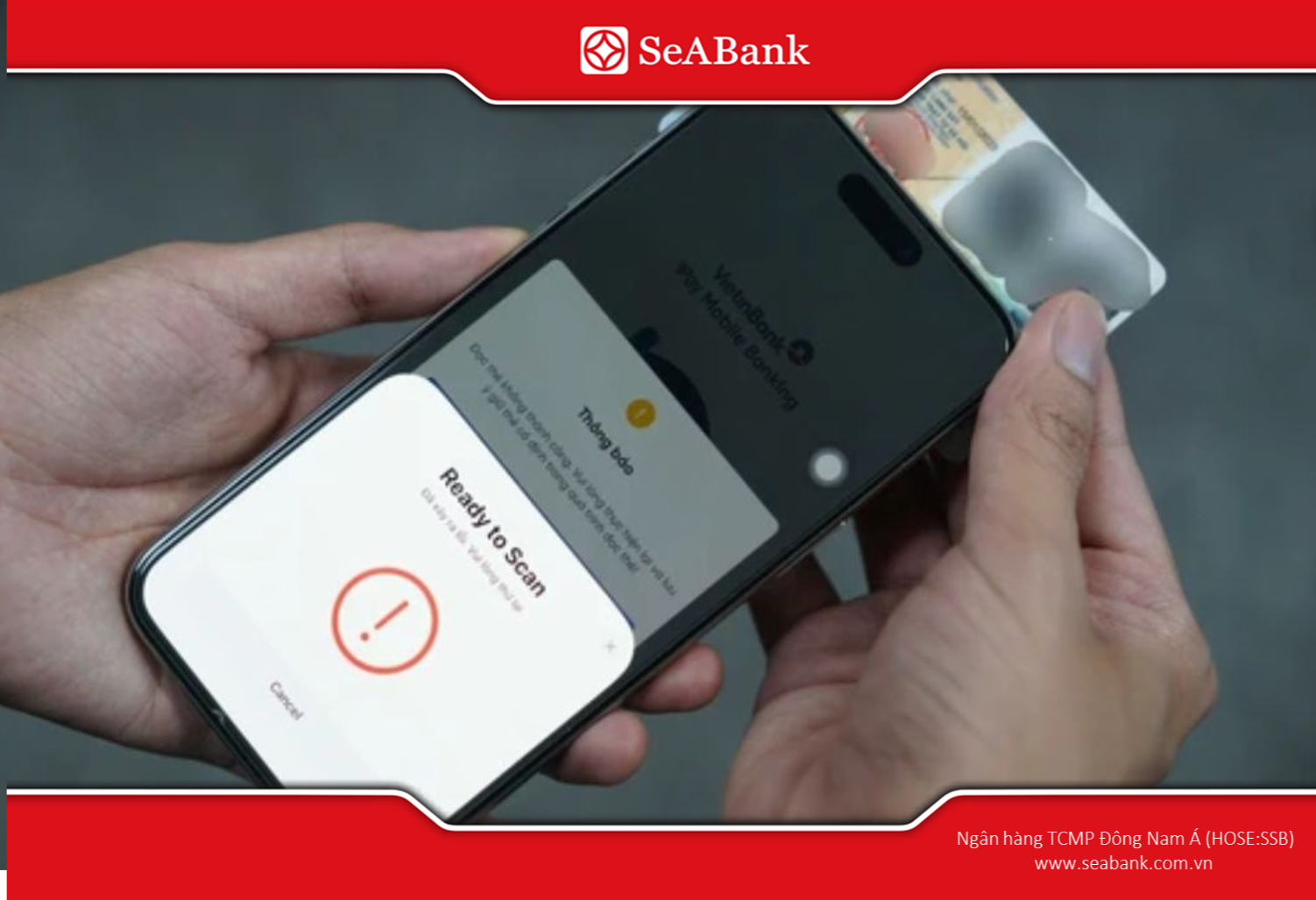
When scanning the CCCD chip, keep the phone stable and avoid placing obstacles on the chip, as this may prevent the application from reading the information. Do not remove the chip or damage the surface of the card to avoid affecting the scanning ability. If the first scan fails, please check the phone's NFC connection and make sure the card is properly placed.
You just need to place the chip in the NFC area (usually on the back of the phone) to scan.
3. How to scan CCCD chip on computer
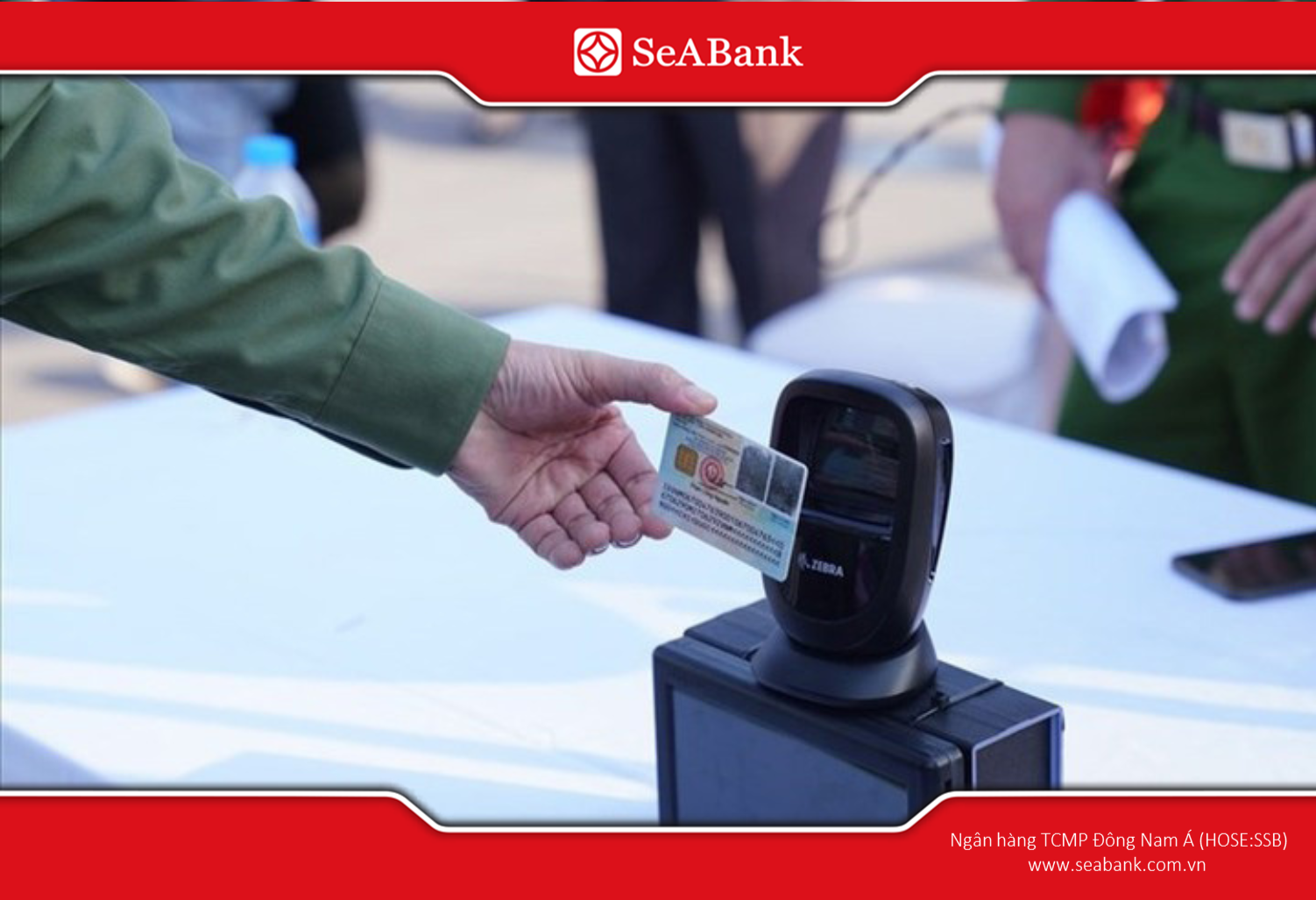
To check and use information from the chip-embedded CCCD on your computer, you need a specialized card reader and supporting software.
Prepare
CCCD chip reader (Card Reader): This is a specialized device that helps computers recognize and read information on CCCD chips. Card Reader can connect via USB port or other compatible interfaces.
Install software to support scanning CCCD chip: You need to install the official software provided by the police or other legal applications that support reading data from the CCCD chip. This software will help the computer display and process card information.
How to do it
Step 1 - Connect Card Reader to Computer: Plug the device into a USB port or compatible interface, making sure the computer recognizes the device.
Step 2 - Insert the CCCD card into the Card Reader: Place the card in the correct position on the device so that the chip reads correctly.
Step 3 - Open the CCCD scanning software:Launch the installed application and select the card scanning function.
Step 4 - Wait for the software to display information: Personal information from the CCCD chip will appear on the computer screen.
Note: Customers do not use software or devices of unknown origin to scan cards to avoid data reading errors and affect the security of personal information.
Currently there are a variety of readers and CCCD chip scanning software that can connect to computers to display information.
4. Some common errors when scanning CCCD chips and how to fix them
Scanning the CCCD chip is usually quick, but in some cases you may encounter errors that cause the information reading process to fail. Below are common errors and effective solutions:
Chip not recognized: If the phone or computer cannot read the CCCD chip, the cause is usually that the NFC on the phone is not turned on, the Card Reader is not connected properly or the card is not placed in the right position. The solution is to check the NFC/Reader connection again, make sure the card is placed close and in the right position, then try scanning again.
Incorrect information displayed: When the information displayed on the chip reading application or software is incorrect, the CCCD card may be damaged, the information is blurred or there is an error during reading. The solution is to check the card, clean the chip surface and try scanning again, or contact the card issuing agency if the problem persists.
Application error: If the CCCD scanning application does not work or encounters an error, it is usually due to an old software version or a system conflict. Please update the application to the latest version or restart the device before scanning again.
5. Frequently Asked Questions
1. Can the information on the CCCD chip be changed?
Information stored on the CCCD chip is strictly confidential and only authorized authorities are allowed to update or adjust it.
2. What to do to scan CCCD chip if the phone does not support NFC
In case the mobile device does not support NFC technology, customers need to go directly to the bank branch for instructions and support in scanning the chip.
3. QIs there a fee for scanning the CCCD chip?
Scanning the CCCD chip is the step of reading data on the card to authenticate personal information, usually free of charge. This technology combines with biometrics (fingerprint, face) or NFC to ensure safety and speed in transactions. Customers just need to touch the card to the device, the data will be authenticated at no cost.
Understanding and correctly applying the CCCD chip scanning procedure will help customers look up and verify personal information quickly and securely. This facilitates convenient administrative procedures and optimizes time.
SeABank supports customers in scanning the CCCD chip quickly, safely, and securely to perform biometric authentication on SeAMobile. If you want to learn more about SeABank products, you can contact the nearest transaction point or call Hotline 1900 555 587 or visit the website www.seabank.com.vn for more details.
Southeast Asia Commercial Joint Stock Bank SeABank

 14/10/2026